.svg?fit=max&auto=format&n=mPHHzoA5GT4E38PL&q=85&s=476f5e0f52403962a9938292fd13cf9b)
.svg?fit=max&auto=format&n=mPHHzoA5GT4E38PL&q=85&s=d9661161e773aa91cc1f45d852fc9825)
Address whitelisting Introduction
This in-product flow authorises org admins to whitelist external addresses (trade counterparties, external company wallets, etc.) that users in the org are allowed to interact with (send funds to). This, together with spend controls at the Vault level, prevents internal attack vectors such as a compromised or malicious user siphoning funds out of secure vaults.How to whitelist an address
- Understanding your Address Dashboard
- Add an Address
- Approve an Address
Understanding your Address Dashboard
- Select ‘+ New Contact’ from the right side of the platform
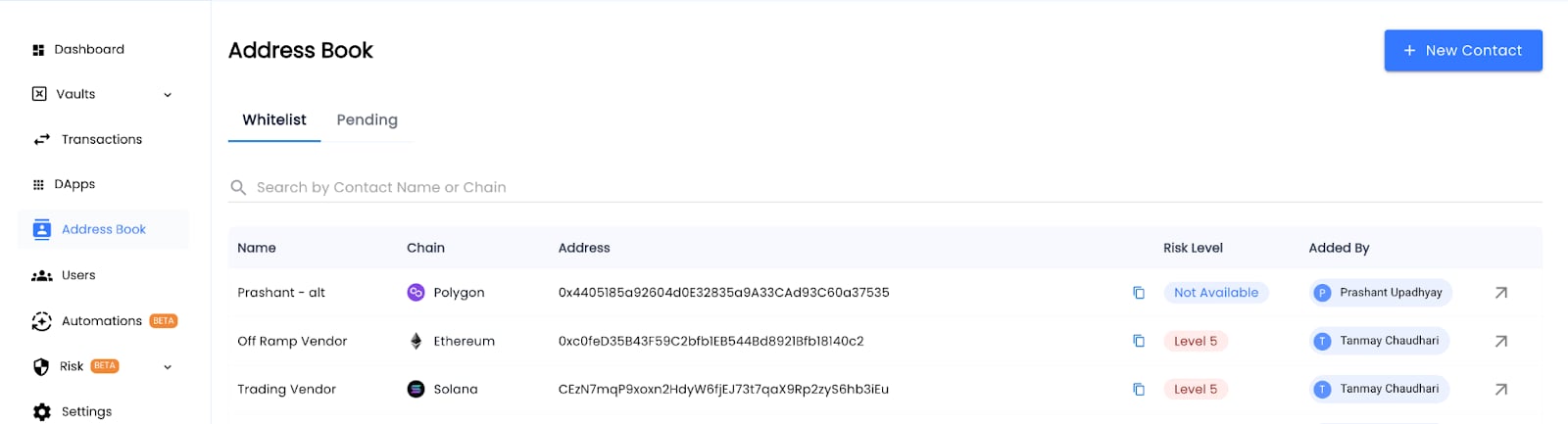
- By clicking on the pending tab, you can view addresses that are pending for approved by workspace owners (as per your policy)
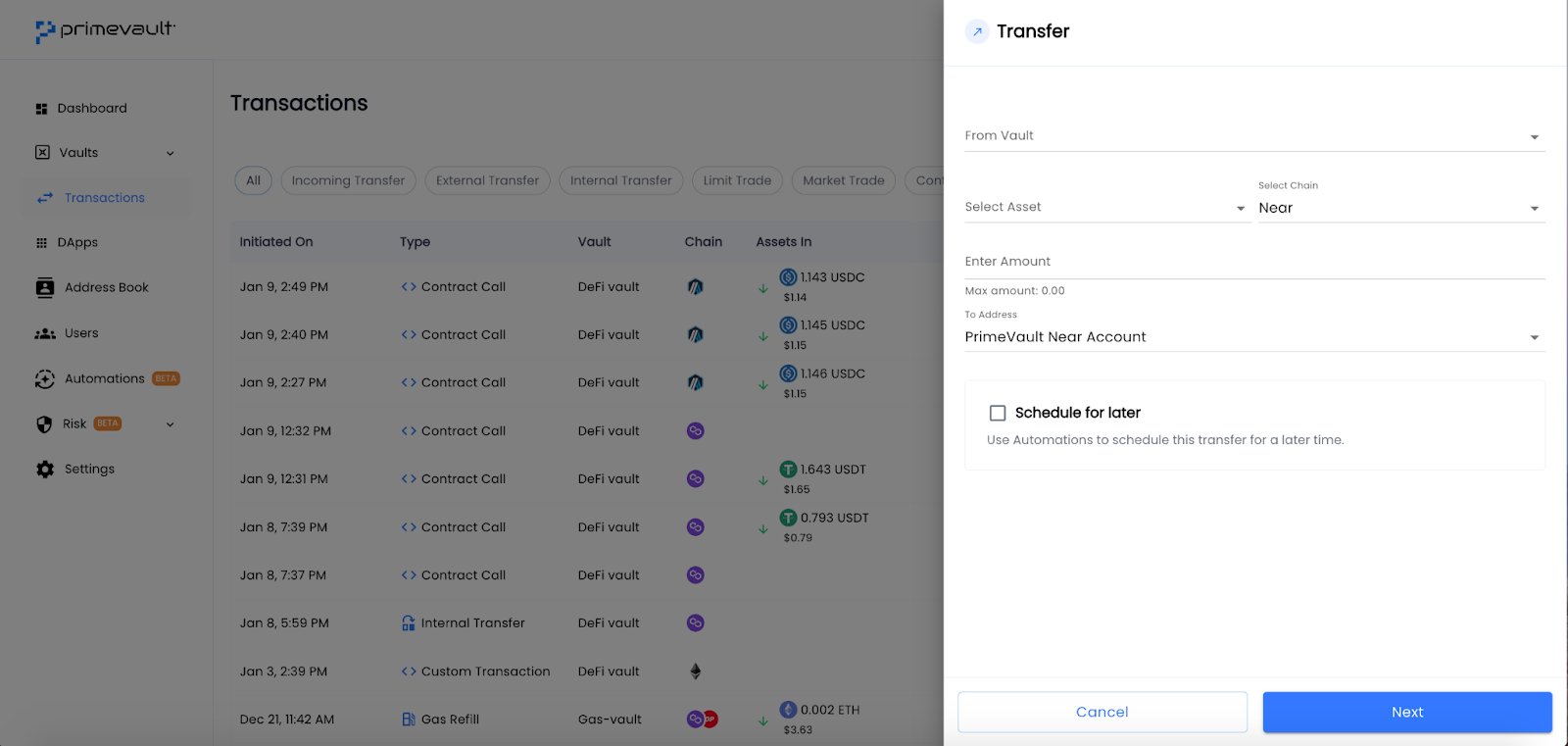
- You can click on the right arrow (next to a contact) to initiate transactions directly from this tab as well
Add an address
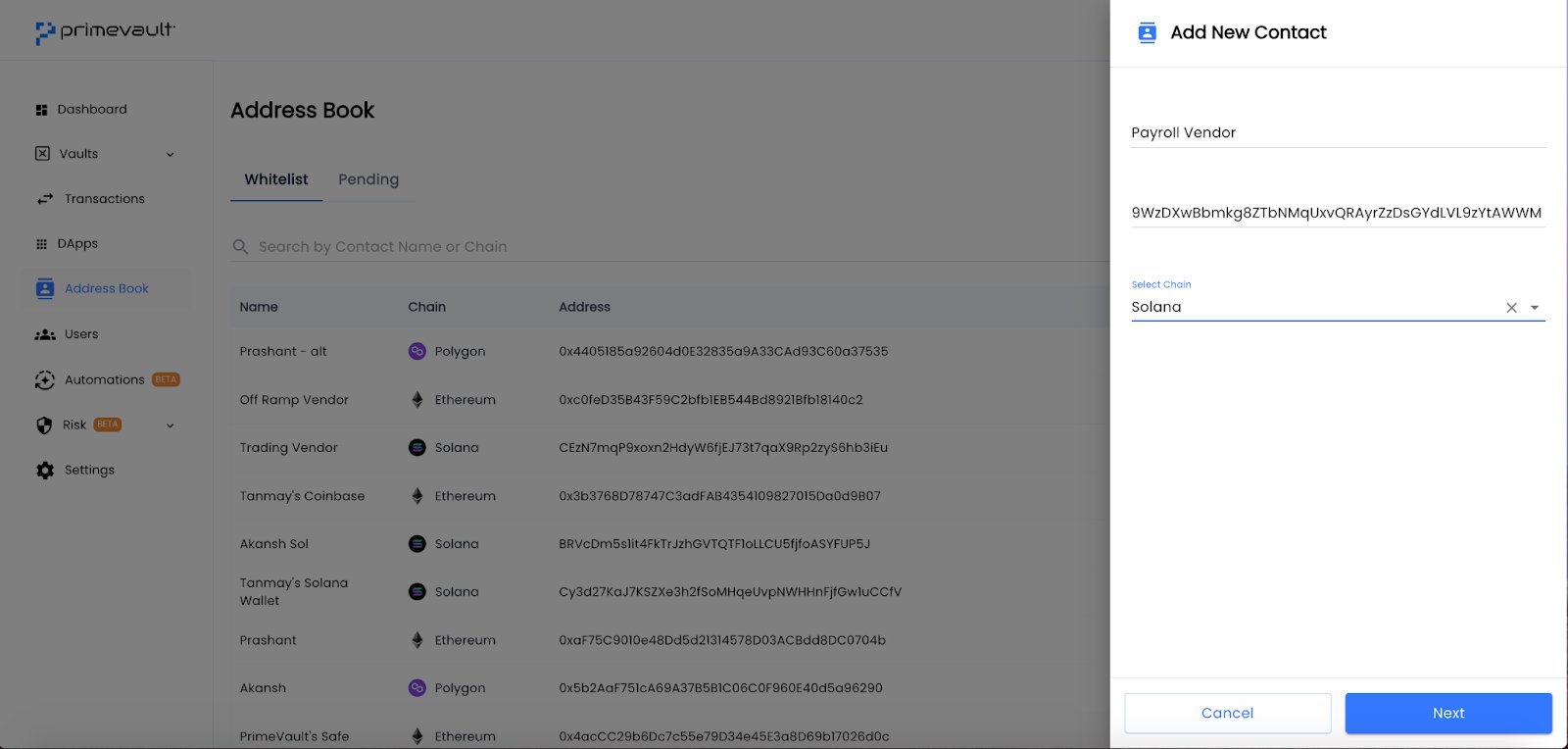
- Add name, address and chain for the address you’d like to whitelist
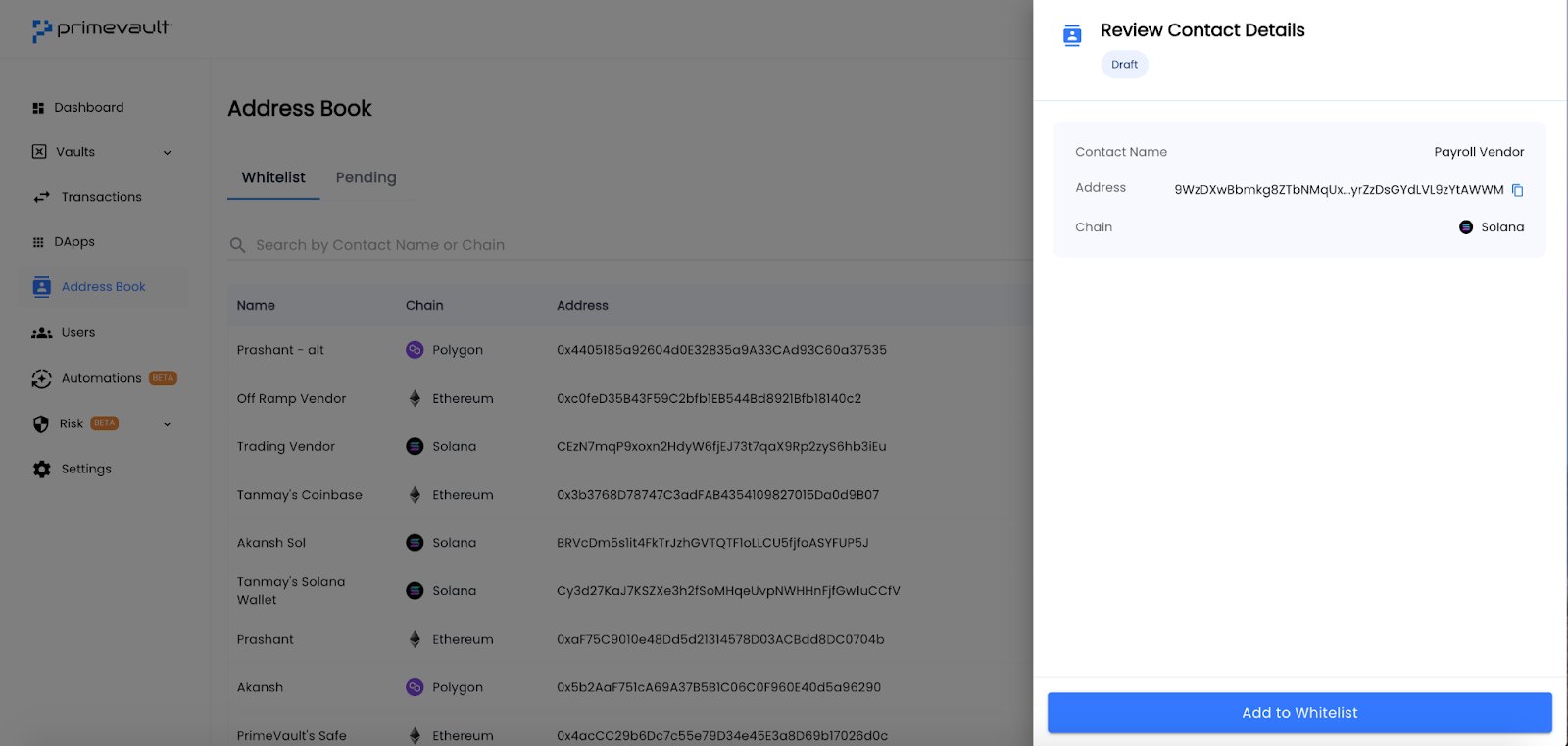
- Review details before selecting Submit
Approve an address
- As per your organisation’s policies, you will be able to view who has requested the addition of address, address details and approvals remaining for the successful addition of the address
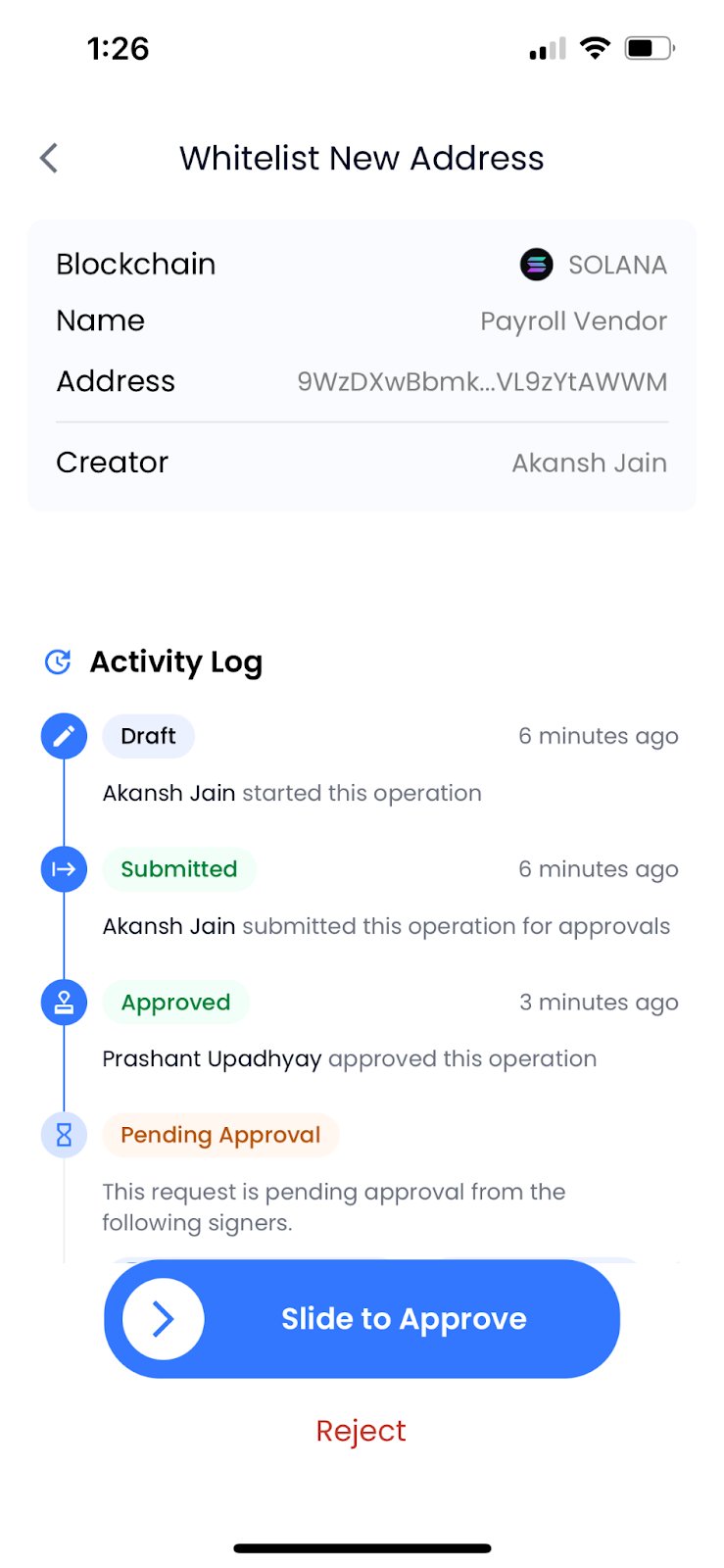
- Slide right or press Reject - to approve or reject the addition of the address
- The process will require FaceID for the approval to go through
- Once approved by your organisation, you can begin interacting with the address from your dashboard