.svg?fit=max&auto=format&n=mPHHzoA5GT4E38PL&q=85&s=476f5e0f52403962a9938292fd13cf9b)
.svg?fit=max&auto=format&n=mPHHzoA5GT4E38PL&q=85&s=d9661161e773aa91cc1f45d852fc9825)
Need a longer history? Contact us, extended retention is available on the Enterprise plan.
When to use it
You’ll typically open the Activity Log to answer a specific question, such as:- What happened to our account around a specific time (for example, while investigating a security incident)
- Who approved a particular transaction, vault, or policy change
- Why a user’s access or a contact’s status changed
- Whether a request was approved, rejected, or is still pending
Where to find it
Activity Log is in the left-hand navigation, below Automations.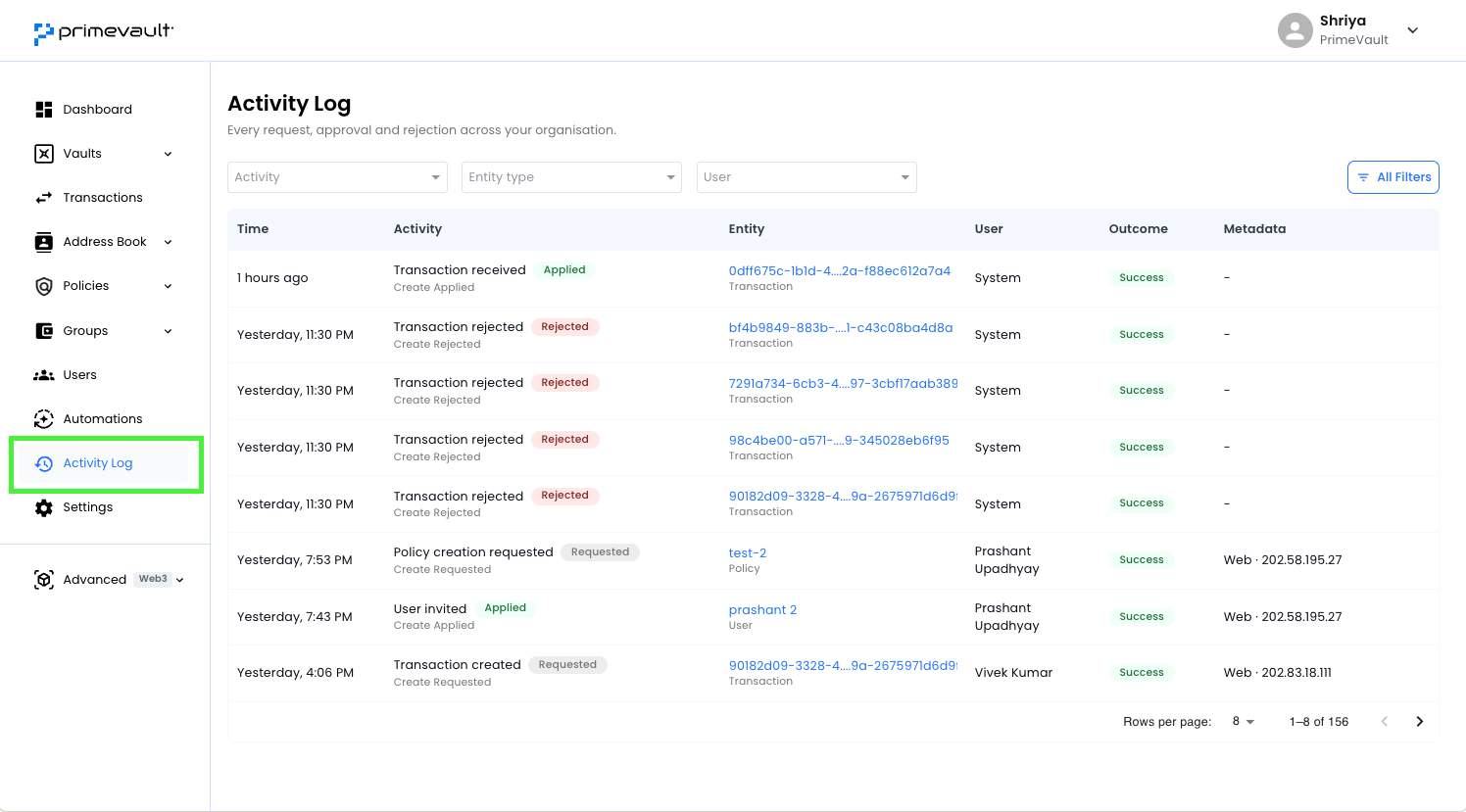
How it works
Before using the log, it helps to understand two things about how entries are structured. Each entry is about an entity, not about the request that changed it. An entity is the thing being acted on. It could be a transaction, a vault, a user, a contact, and so on. When you open an entity’s row, the Entity column links you straight to that record. Some actions require approval, and appear as a chain of related entries. Certain actions like creating a vault, adding a policy rule, deactivating a user cannot take effect immediately. They go through an approval step first. When this happens, the Activity Log records each stage separately: Requested → Approved → Applied If a request is turned down instead: Requested → Rejected If more than one approval is required, each approver’s decision is logged as its own entry. This means one approval-gated change can appear as three or four related rows instead of one and you can see not just that something happened, but who asked for it and who signed off. Other actions don’t need approval at all, because there’s no intent to confirm. For example- Resending an invite
- Transaction moving to its next processing step once it’s already been approved.
Reading an entry
Each row has six columns:Filtering activity
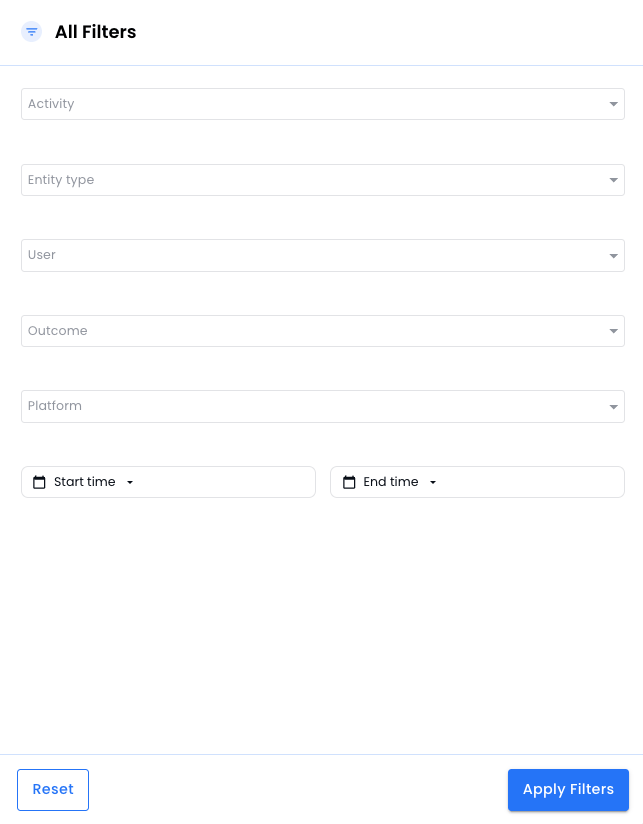
You can filter by Activity, Entity type, User, Outcome, Platform, and time range, and combine filters to narrow results. Open All Filters to see every option.