.svg?fit=max&auto=format&n=mPHHzoA5GT4E38PL&q=85&s=476f5e0f52403962a9938292fd13cf9b)
.svg?fit=max&auto=format&n=mPHHzoA5GT4E38PL&q=85&s=d9661161e773aa91cc1f45d852fc9825)
Exchange Vault Introduction
- Connect your Exchange trading accounts in PrimeVault and provision necessary access controls to admins to move funds between Core Vaults and Exchanges
- Automate Vault-to-Exchange and Exchange-to-Exchange transfers
- Note: Exchange Vault is a custodial Vault where the funds are in your Exchange’s custody
- The Vault in PrimeVault provides a permissioned framework to interact with assets sitting on linked Exchanges and enables single-window administration of funds across Exchanges
- We’ve enabled connections to a large number of exchanges via our partner’s APIs (Mesh)
How to use an Exchange Vault
- Create an Exchange Vault
- Withdrawing assets out of Exchange Vault
- Depositing assets into Exchange Vault
Create an Exchange Vault
- Create API Key & Secret Key on your exchange’s platform (requirement varies as per exchange). Explained in the next section for different exchanges.\
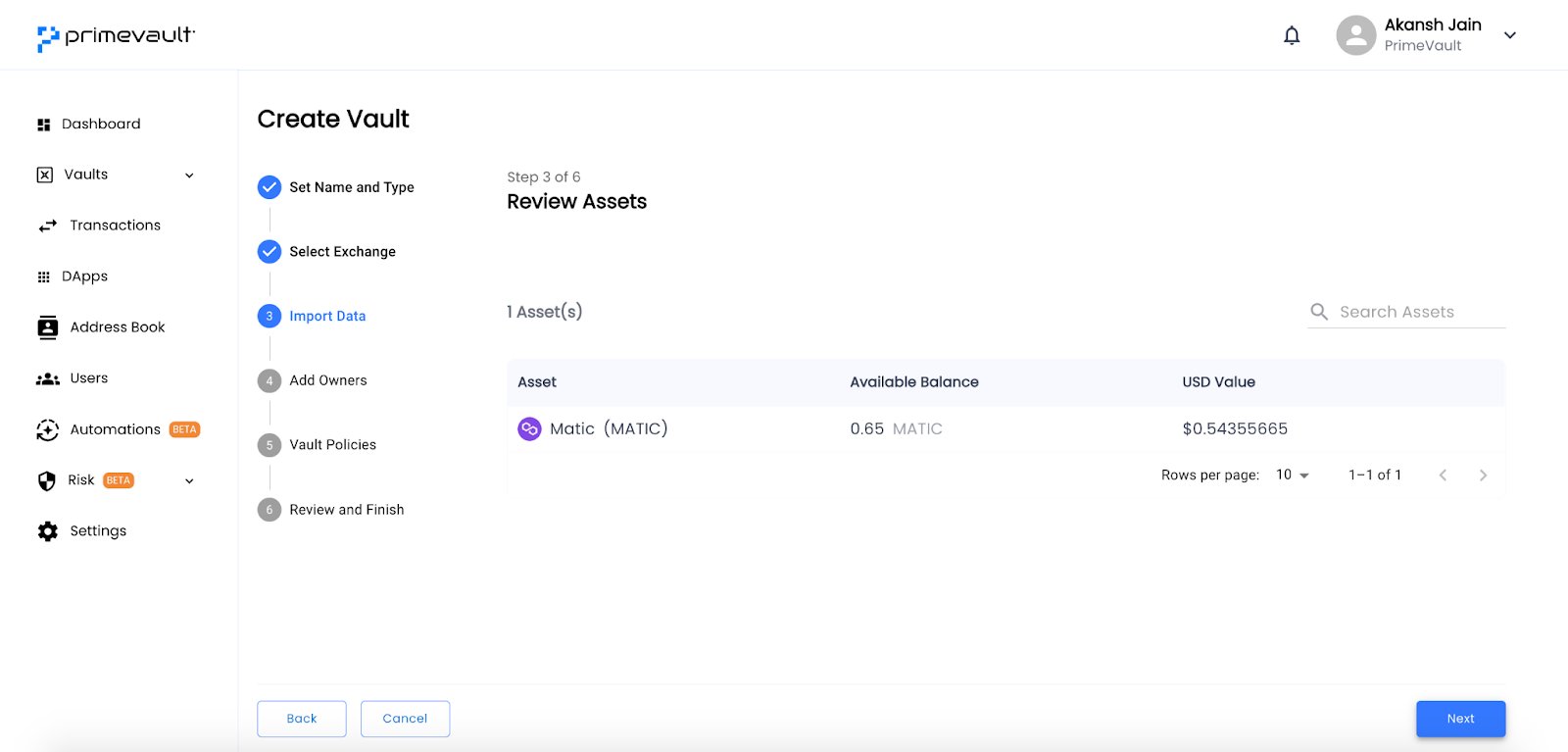
- Complete steps as per the Exchange Vault flow. Select the policy template, review the assets and submit.
API Key Setup for Exchanges
Kraken
Settings -> API -> Create API Key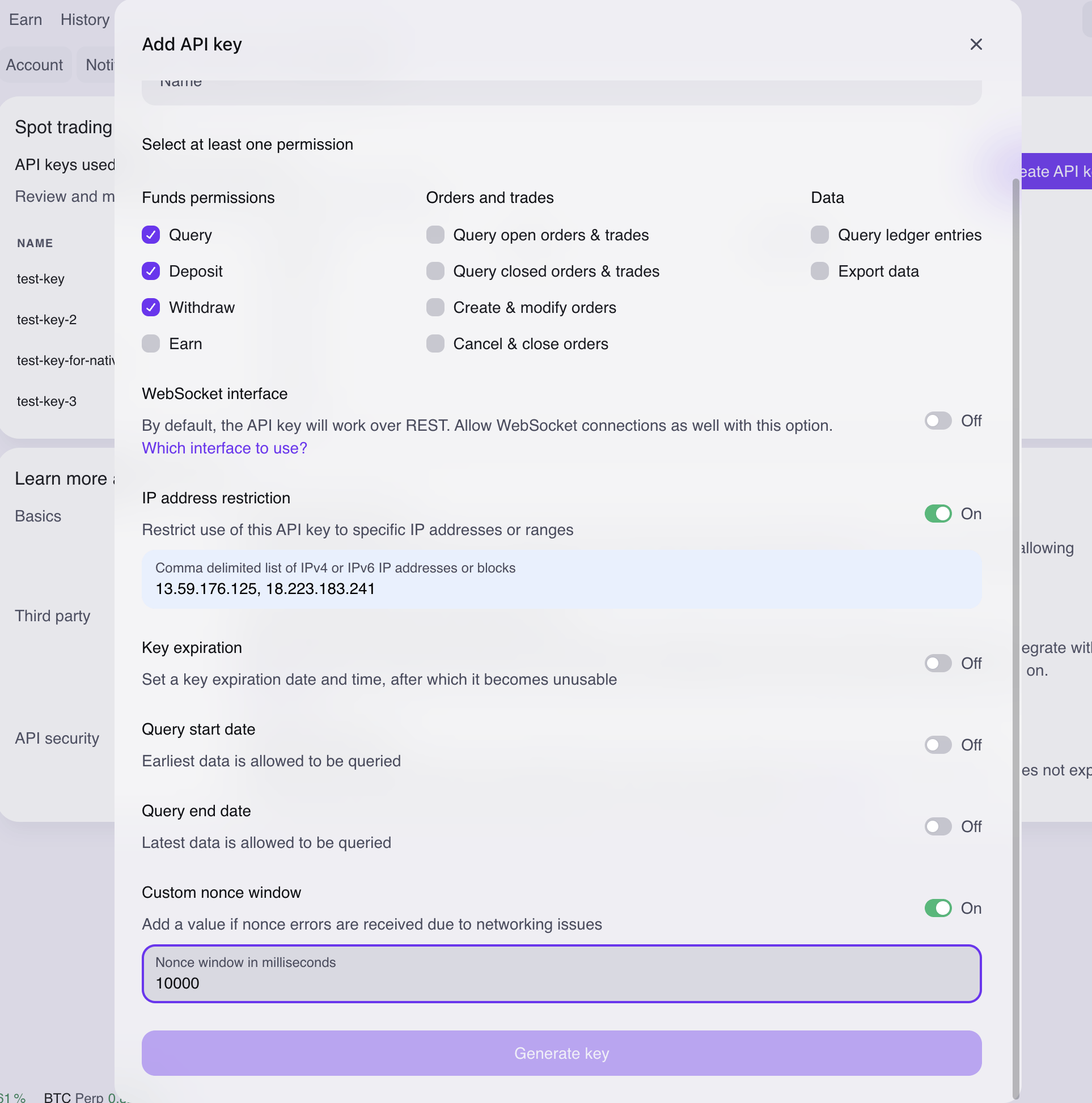
- Kraken Help Center link
- Permissions: Query, Deposit and Withdraw
- IPs for whitelisting: 13.59.176.125, 18.223.183.241
- Nonce window: 10000
Coinbase International
- API -> Create API Key
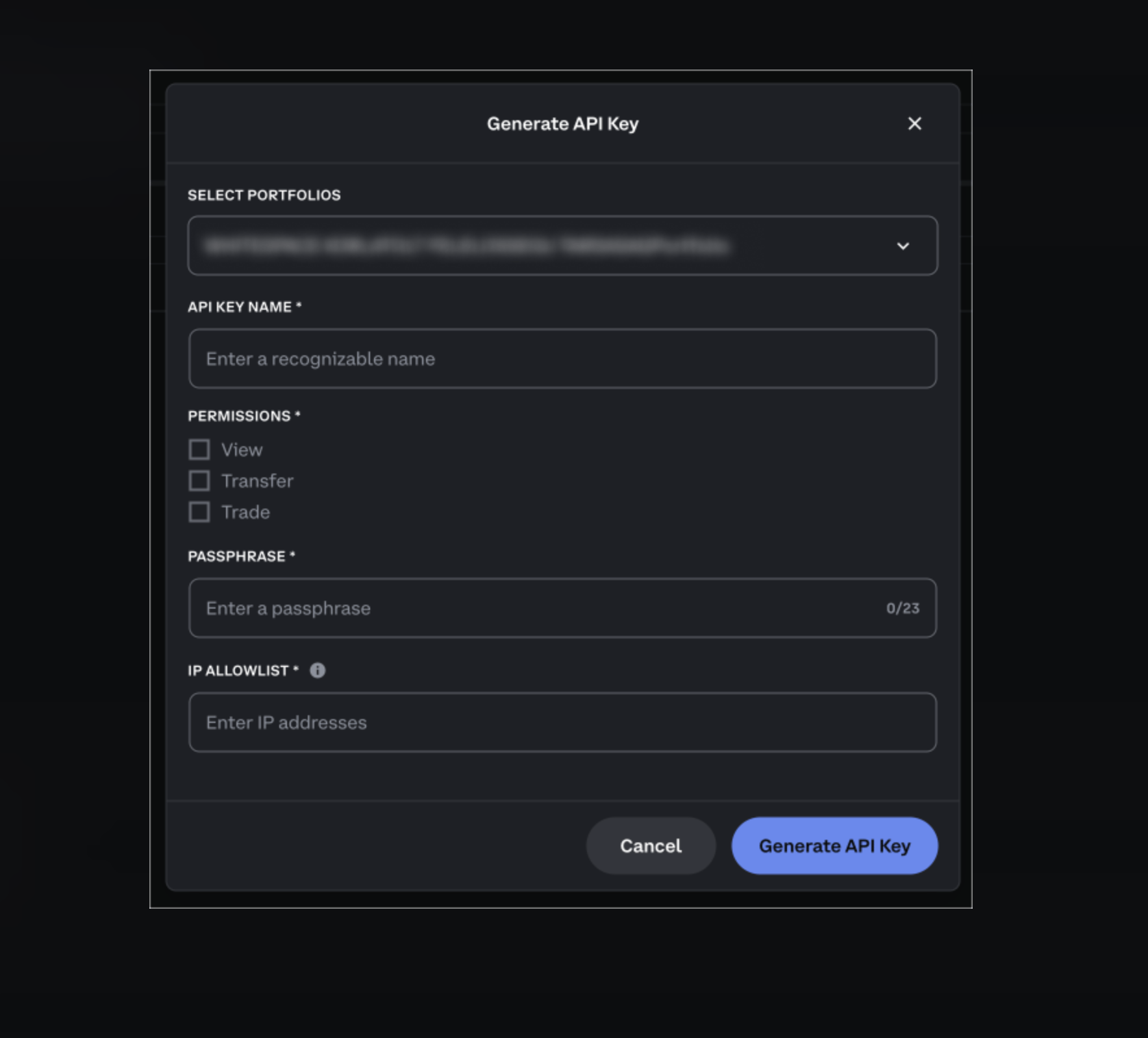
- Permissions -> View & Transfer
- IP Allowlist -> 54.151.154.241 and 18.136.156.129
Coinbase Exchange
- API key setup similar as Coinbase International above.
- IP Allowlist -> 13.59.176.125 and 18.223.183.241
Gateio
- Profile -> API Management -> Create API Key
- IPs to link: 13.59.176.125, 18.223.183.241
- Permissions
- Spot Trade -> Read Only
- Wallet -> Read And Write
- Withdraw -> Read And Write
- Account -> Read And Write
Mexc
Profile -> API Management- Provide the permissions as below
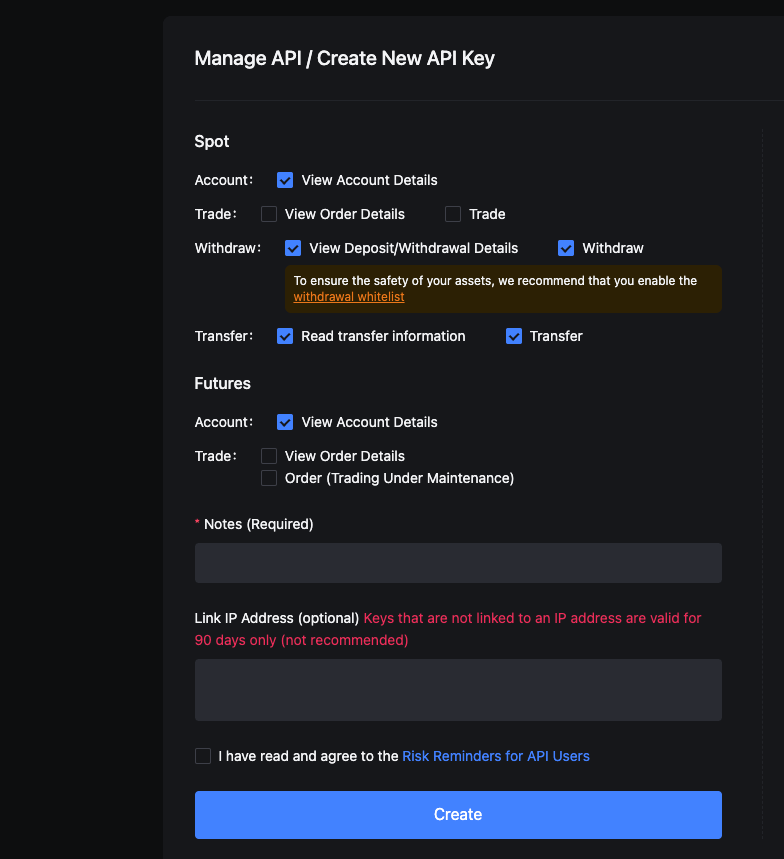
- IPs to link: 13.59.176.125, 18.223.183.241
Binance
- Profile -> Settings -> Account -> API Management
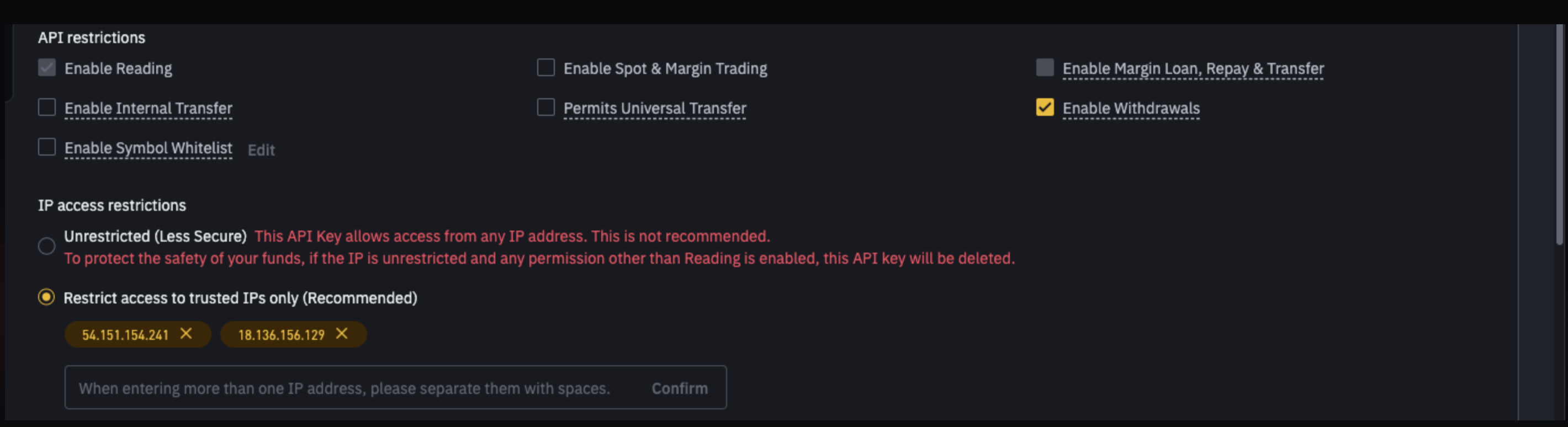
- IP Allowlist -> 54.151.154.241 and 18.136.156.129
- Permissions
- Enable Withdrawal
Binance US
- IP Allowlist -> 13.59.176.125 and 18.223.183.241
- Permissions
- Enable Read
- Enable Withdrawals
KuCoin
- Profile -> API Management -> Create API Key
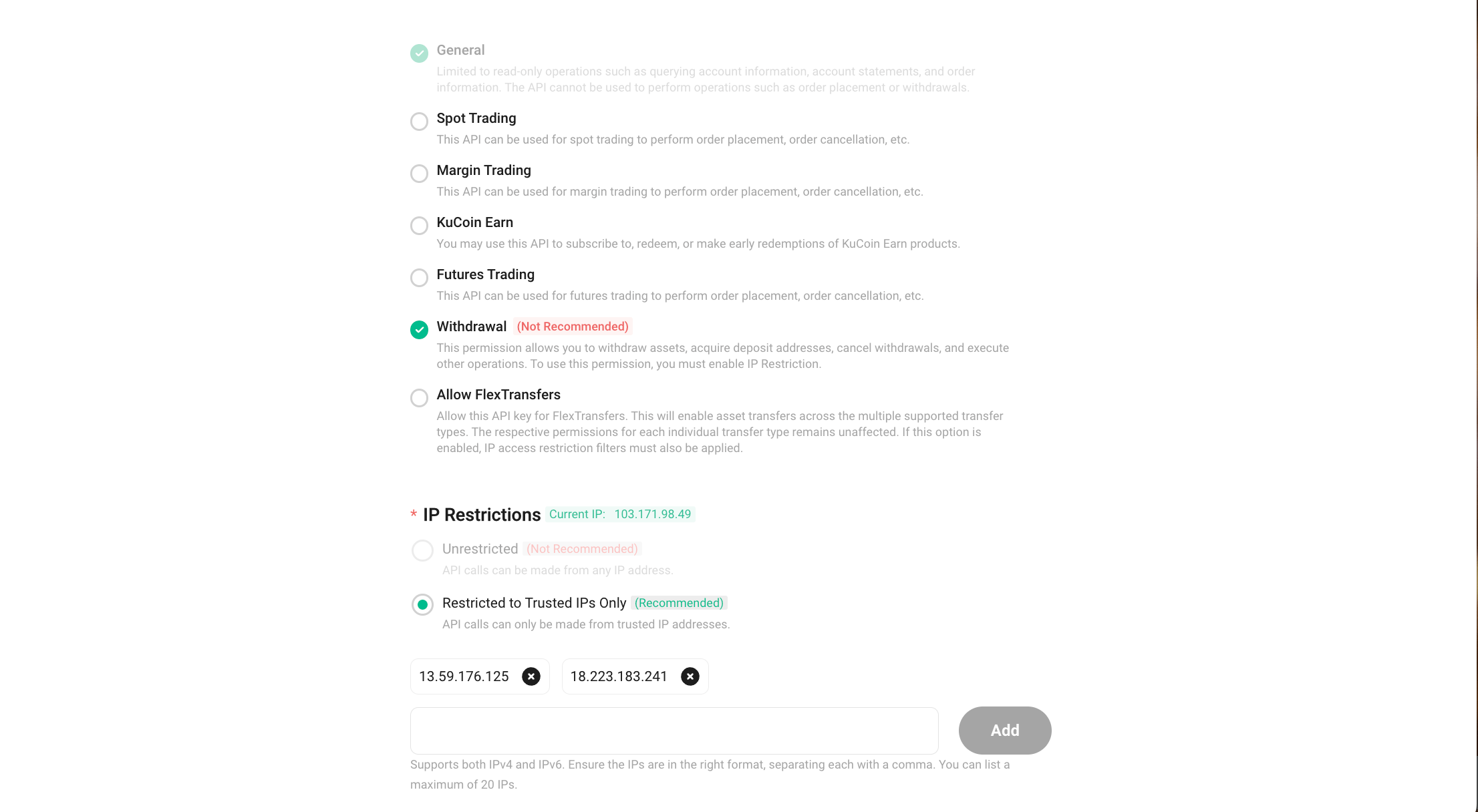
- IP Allowlist -> 54.151.154.241 and 18.136.156.129
- Permissions
- Withdrawal
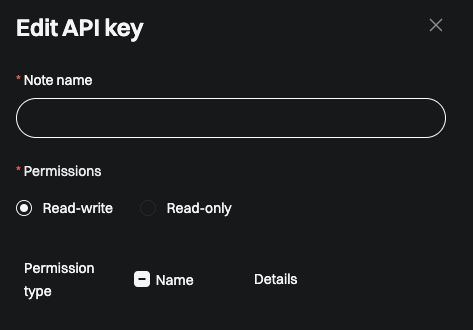
Bitget
Profile -> API Key -> Create API Key- Enter name
- Permissions -> Read-write
- Permission type
- Spot - Trade
- Wallet - Transfer & Withdraw
- IP
- 13.59.176.125, 18.223.183.241
-
- 13.59.176.125, 18.223.183.241
ByBit
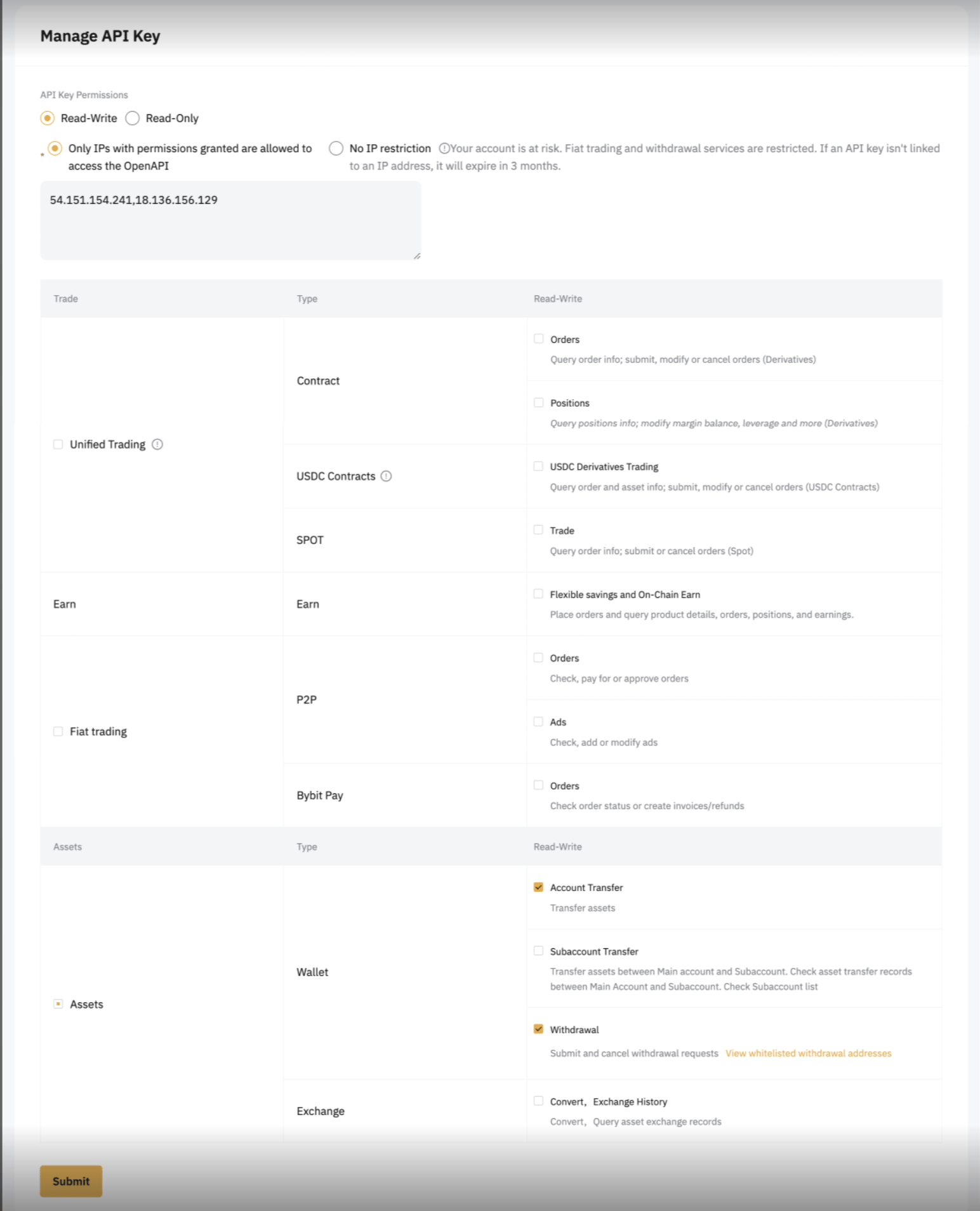
- 54.151.154.241 and 18.136.156.129 (Comma separated and no space)
- Assets
- Account Transfer
- Withdrawal
OKX
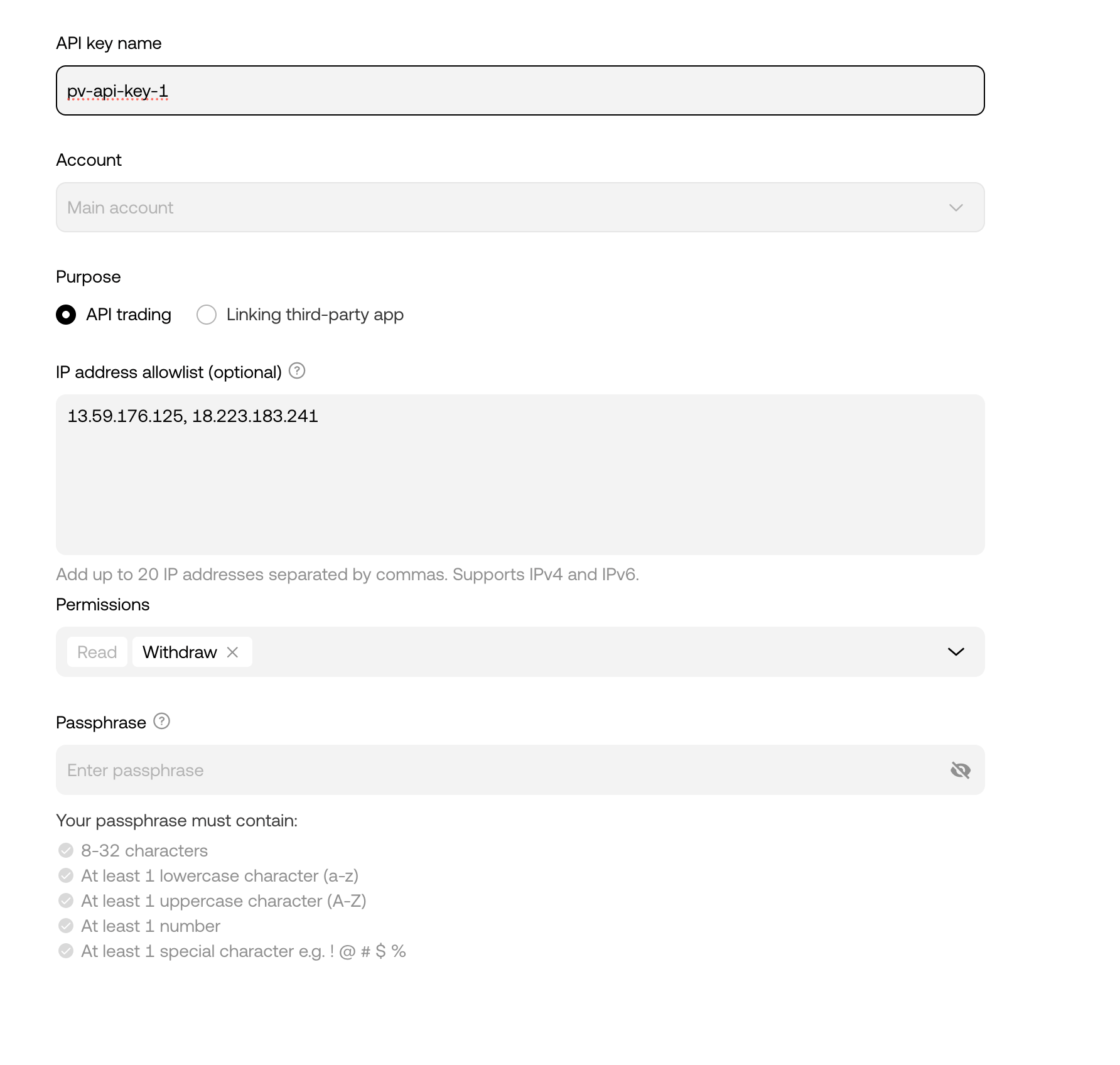
- 13.59.176.125, 18.223.183.241
- Read and Withdraw
- API Trading
Withdrawing assets from Exchange Vault to Core Vault
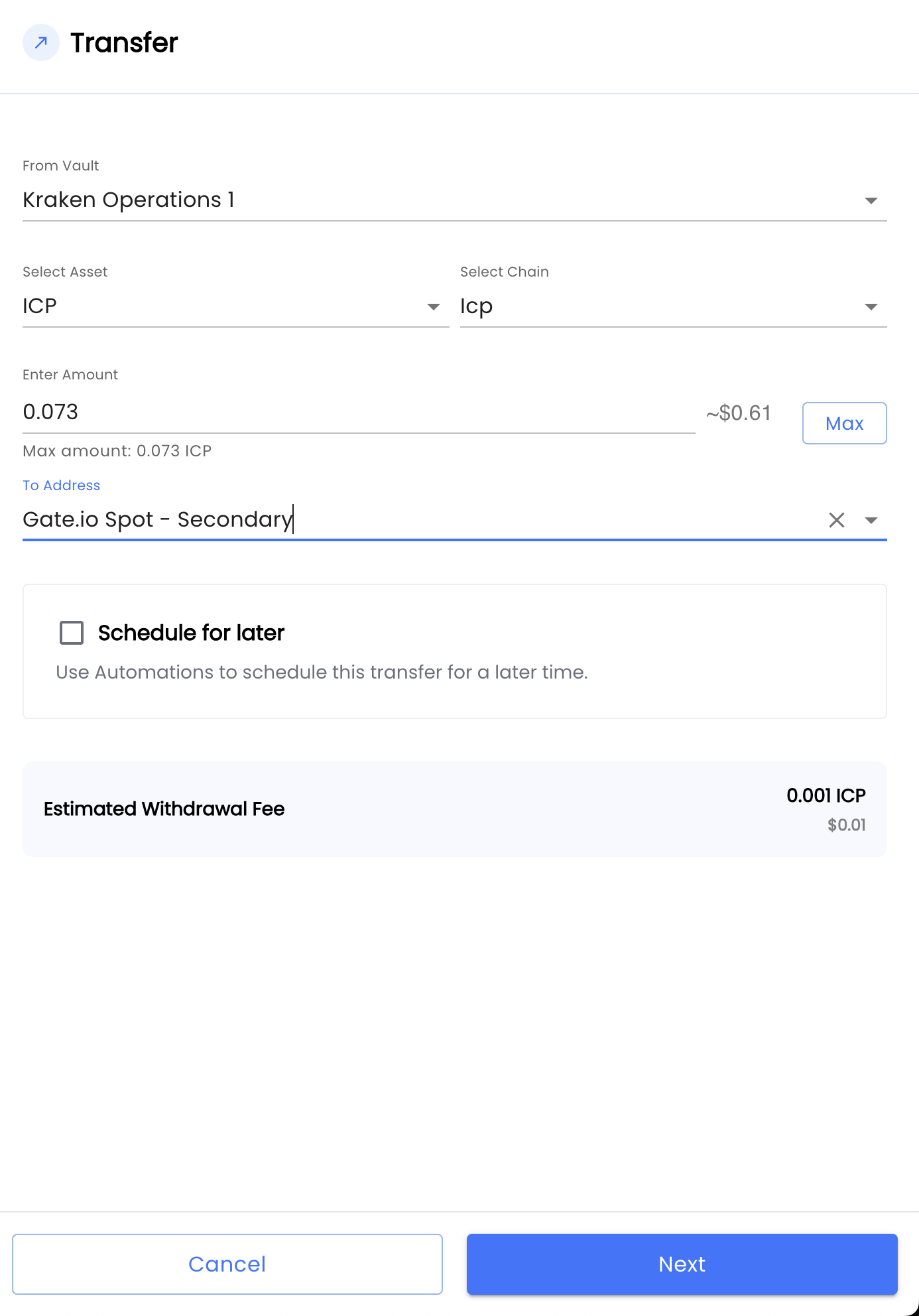
- Whitelist the core vault, other exchange vault and other addresses on the exchange using the specific exchange platform. This is a requirement to be able to withdraw funds from the exchange account using PrimeVault.
- In PrimeVault, to initiate transfer, go to Transaction -> Transfer and Select Exchange account, asset, chain, amount and counterparty.
- After all the inputs are provided, you will see the expected withdrawal fee computed based on the inputs.
Depositing Assets into Exchange Vault from Core Vault
- Use the PrimeVault platform to initiate deposits into the exchange
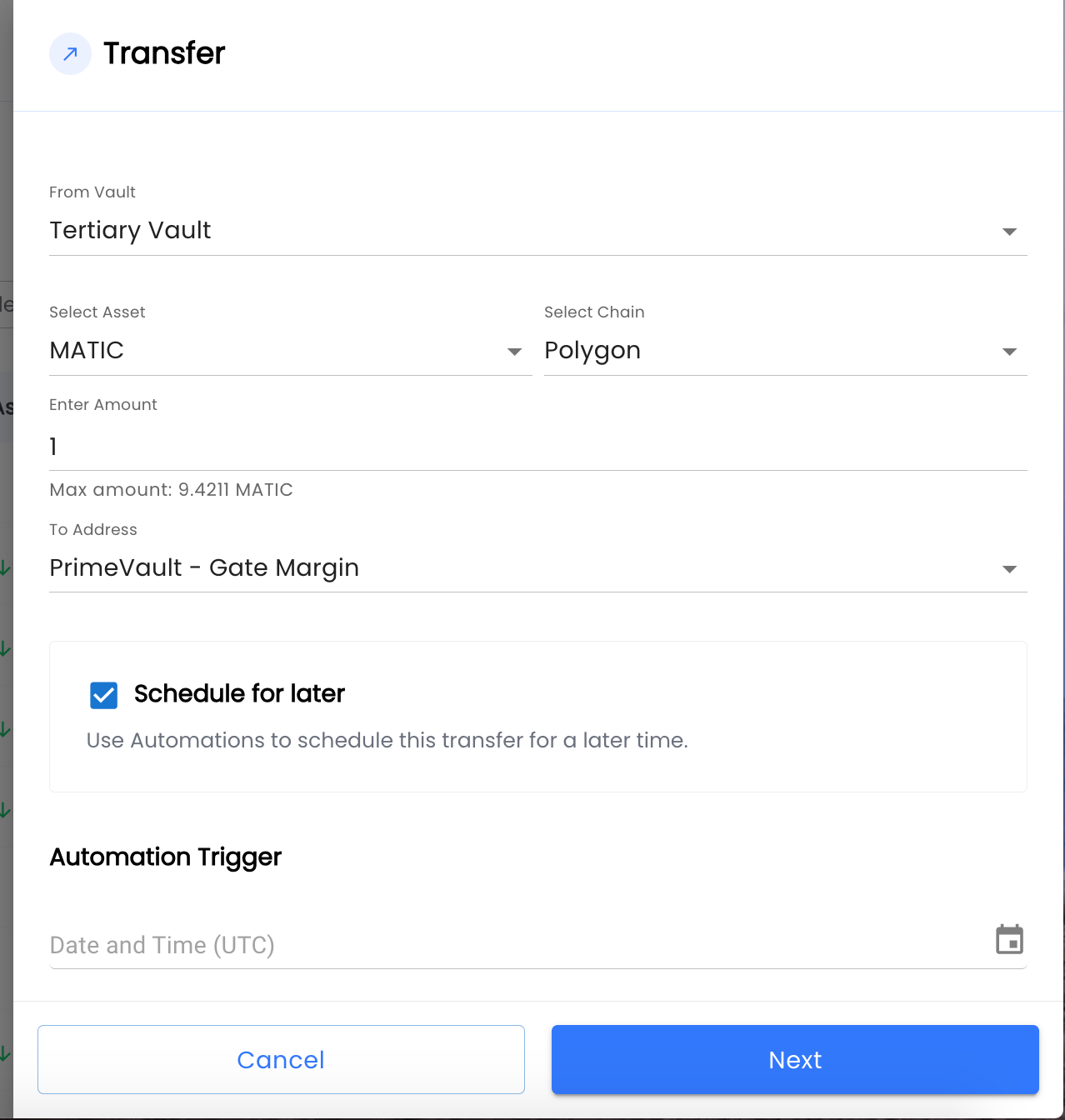
Cross Exchange Transfer
- Cross-Exchange transfer would be similar to deposit and withdrawal actions.
- First, whitelist the destination exchange’s deposit address for withdrawals on the source exchange.
- When you initiate a transfer in PrimeVault, it will trigger a withdrawal from the source exchange to the destination exchange’s (deposit) address.