.svg?fit=max&auto=format&n=mPHHzoA5GT4E38PL&q=85&s=476f5e0f52403962a9938292fd13cf9b)
.svg?fit=max&auto=format&n=mPHHzoA5GT4E38PL&q=85&s=d9661161e773aa91cc1f45d852fc9825)
- How to understand transaction status in PrimeVault
- What to do if a transaction is Failed
- What to do if a transaction is stuck in Submitted
1. Understanding Transaction Status
In the Transactions page, each transaction has a status (e.g., Pending, Completed, Declined, Approved, Completed, Submitted).- PrimeVault already shows you the status in the interface.
- If you want to double-check on-chain, you can click the transaction hash to open it on Etherscan (or the relevant block explorer).
2. When a Transaction Has Failed
If the transaction status in PrimeVault is Failed, and the block explorer also shows it as failed, you can quickly recreate it without starting from scratch. A transaction can fail if gas or tokens are insufficient or the gas fee is set too low. Steps:- Go to the Transactions page.
- Find the transaction that was marked as Failed (You can double-check on the block explorer for the status of the transaction via the transaction hash. If the hash is not available, the transaction has failed).
- Click the three-dot (…) menu on the right of the row.
- Select Duplicate.
- Review the pre-filled details (vault, destination, asset, amount, etc.).
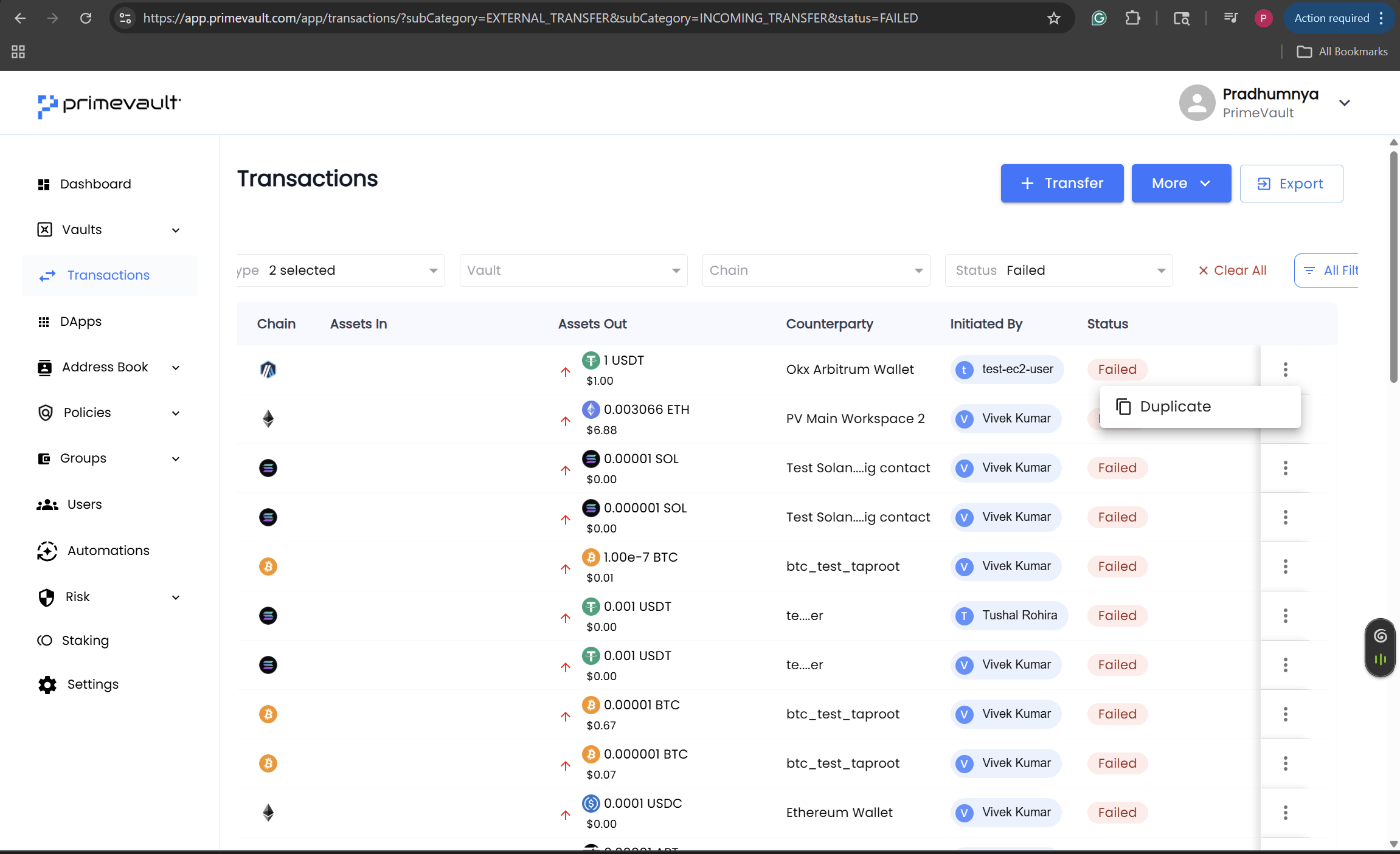
- PrimeVault creates a new transaction with the same parameters.
- A new on-chain transaction hash will be created once it’s sent.
- It has its own webhook events and activity log, separate from the original failed attempt.
3. When a Transaction Is Stuck in “Submitted”
Sometimes a transaction is stuck in the Submitted state, but it remains in that state for a while (typically due to on-chain congestion or a low gas fee). If a transaction has been in the Submitted state for around 10–15 minutes, you can safely retry it. Steps:- Open the Transactions page.
- Click on the transaction that is in Submitted status to open the drawer.
- In the transaction drawer, click Retry.
- PrimeVault resends the same transaction with:
- The same nonce (so the new attempt replaces the old pending one), and
- A higher gas fee, increases the likelihood that miners/validators pick it up quickly.
- No new transaction is created in PrimeVault:
- You still see one transaction in the UI.
- The same webhooks and activity log are used; we’re simply bumping the gas on the existing transaction, not creating a second one.